
Redirecting to a Custom Thinkific URL after SAML Login
Often, you may want a student to land on a specific page on your Thinkific site after completing a SAML login. For example:
- An onboarding or FAQ page for their particular cohort, company, team, etc
- A course overview page
Note:
- By default, all students are redirected to their enrollment page on Thinkific after login.
- You cannot redirect to external sites, e.g. www.google.com.
1. Navigate to your SAML Tenants

2. Click the Tenant you wish to make a custom redirect for

3. Click "SAML" next to the Application

4. Scroll down and click "Create Link"

5. Click the "Name" field.

6. Enter a descriptive name e.g. "Redirect to Custom Page"
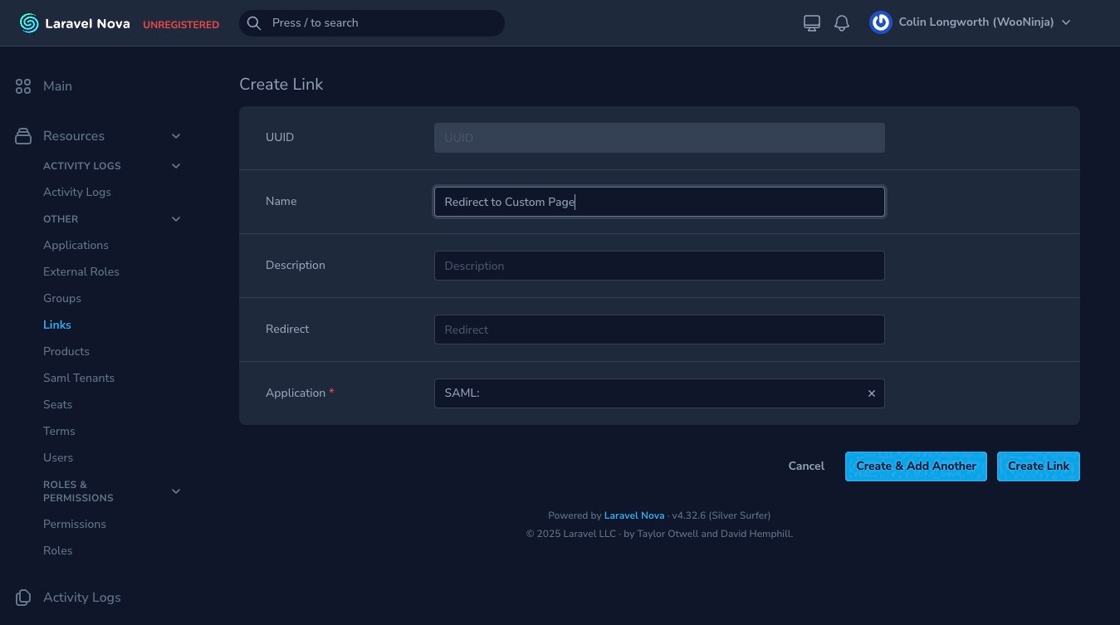
7. Click the "Redirect" field.

8. Enter a full URL e.g. "https://www.thinkific.com/my-custom-page"

9. Click "Create Link"

- The URL for the link is available on your dashboard under Links

When a student clicks the Link URL, they will be redirected to this URL after successful login.